404, 500, 502 and 503 errors: Troubleshoot the right layer
· PoolByte
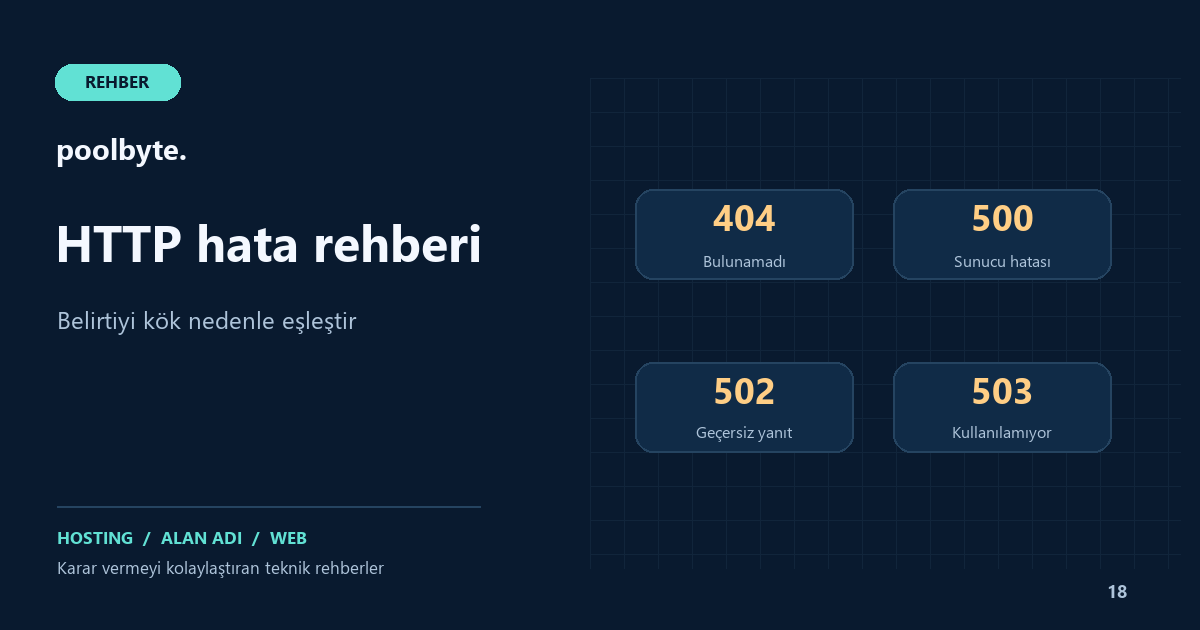
When you see an error on a website, the first thing should not be to change all the settings. The HTTP status code gives initial information about which section the issue should be investigated in. Using the same error page design does not mean that all problems are caused by the same cause. The URL, application, web server and services in between should be evaluated separately.
Additionally, the code written on the screen and the code actually returned by the server may be different. If a response that says “Page not found” returns 200, it is a successful HTTP response; The content is the error page. Verify the actual status code with the browser's developer tools or the appropriate HTTP check.
Narrow down the issue first.
Record the exact URL where the error occurred, time, user status, and last change. Is the problem on a single page or the entire site? Logged in or anonymous visitors? Is it the same on mobile and desktop? If there is a CDN or reverse proxy, try to separate the response it produces from the response of the originating server.
For example, if only images return 404, file paths take priority. If all dynamic pages give 502 and static files are opened, application processes or the parent server connection can be investigated. These are not definitive diagnoses, but clues that narrow down the order of control.
404: The requested resource was not found
404 indicates that the server could not find the requested resource. Incorrect URL, deleted content, moved file, case difference or redirect rule may cause this. First, check if the file or content actually exists and is at the correct address.
If you moved a post to a new address, redirect the meaningful old URL to the corresponding new URL. Redirecting all unfound pages to the home page will not ensure that the visitor reaches the content he is looking for. It is more self-explanatory to maintain the correct error response for content that has actually been removed and has no counterpart.
If only post addresses are not working in WordPress, the permalink and server redirection configuration can be examined. Save the current settings first; Don't complicate the situation by adding random .htaccess parts. Also compare the names and directory path of the resources.
500: Unexpected condition in application or server
500 is a common server error; It doesn't by itself tell you which line is problematic. There may be reasons such as new plugin, incorrect configuration, PHP incompatibility, missing dependency or resource limit. Time and request information in the error log is more valuable than guesswork.
Identify the version and scope of the last change. If possible, reproduce the same error in staging environment. Instead of randomly deleting plugins, use a controlled isolation plan. Do not trade in live unless you consider that turning off a component does not affect ordering, subscription or content behavior.
WordPress debugging options can be helpful in a testing environment. Instead of making detailed error output available to the visitor, examine it in the log with protected access. File path, connection information and sensitive data should not be displayed on the public page. If a PHP change is suspicious, use the check sequence in the version upgrade guide.
502: The intermediate server could not receive a valid response
502 indicates that the server acting as the gateway or proxy was unable to receive a valid response from the parent server. The application process may have stopped, the connection path may have been faulty, or the parent server may not have responded as expected. Don't just blame the problem on the browser cache.
The control order varies depending on the connection architecture: CDN, reverse proxy, web server and PHP processes. Determine from the logs which component generated the code. If the port, certificate, PHP-FPM or proxy setting has changed recently, include this in the review. If you do not have access to the server, contact the provider with the exact time and URL.
Blindly restarting the service may temporarily reduce symptoms, but may make it harder to find the cause. First save the relevant logs and resource status. If initialization is required, identify the sites it affects and the person responsible.
503: Service is temporarily unavailable
503 indicates that the service cannot currently serve the request. Scheduled maintenance or overload are possible causes. Distinguish between application maintenance mode and server capacity limit. If an update is interrupted, do not remove any remaining maintenance status without verifying that the process has actually completed.
In appropriate cases, the Retry-After header may provide information regarding the retry time. However, just adding this title to the error page does not fix the capacity. Hosting resources guide helps interpret CPU, memory and processing limits.
Carefully manage retry on payment screen
Even if a payment request shows an error, the provider may still have accepted the transaction. Compare order and provider records before directing the user to pay again and again. When the error occurs, the order reference and status information are important.
Do not share card information, password or access key in the whitepaper. Provide the support team with the cleaned error text, URL, time, and last change made. If possible, include the request ID in the network response.
What to verify after correction?
- Retry the offending URL and any other related pages.
- Check the actual HTTP code.
- Verify that functions such as form and session are working.
- Watch for new errors in the log.
- Clear the cache to the required extent.
- Close with a brief note of the change and result.
The correct status code is also important for search engines. Repeatedly presenting error content with a successful response or sustaining server errors for long periods of time can create crawling and indexing problems. You can find more of these checks in the Technical SEO guide.
Frequently asked questions
Does clearing the cache fix every error?
No. Might be useful in cases where the old answer is shown; It does not repair a broken application or a downed parent server.
Should I upgrade my hosting package?
First measure whether the resource limit has actually been exceeded. If capacity issue is confirmed, consider web hosting options; Code or routing error requires different solution.