Upgrading PHP: Compatibility, testing and rollback
· PoolByte
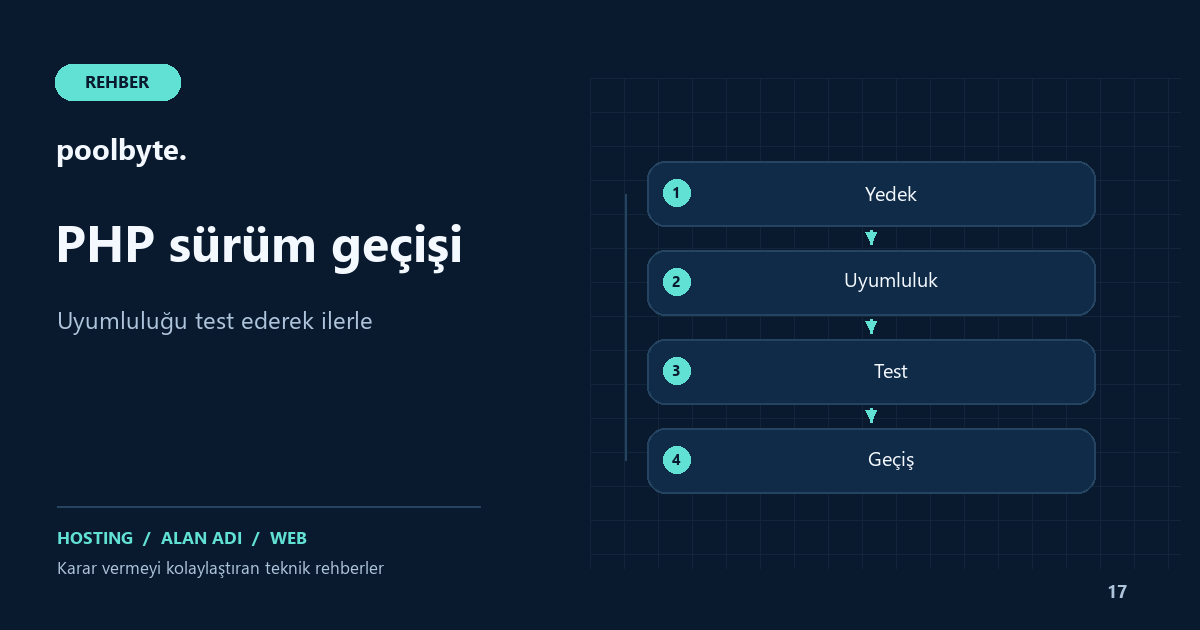
Upgrading PHP version is a broader change than choosing a new number in the hosting panel. Apps, themes, plugins, libraries and scheduled tasks must work with the same version. The goal of the plan is to create a supported and validated working environment for your application, not just to upgrade to a newer version.
For example, even though the website is open, the report task running at night may continue with the old command line PHP. In another case, the homepage is fine, but an old payment plugin only gives errors during checkout. That's why a checklist is needed that doesn't limit the transition to the page opening.
Read current PHP support status
The schedule seen on the official PHP support page on October 11, 2026 is as follows:
- PHP 8.2: active support finished; security support until December 31, 2026.
- PHP 8.3: active support finished; security support until December 31, 2027.
- PHP 8.4: active support until December 31, 2026, security support until December 31, 2028.
- PHP 8.5: active support until December 31, 2027, security support until December 31, 2029.
Bug and security fixes are made during the active support period. The next period provides fixes only for critical security issues. Staying on a version with no security support poses a separate risk. Since these dates become obsolete over time, check the official calendar again on the day of the decision.
The newest version may not be the version that every application immediately supports. PHP's support status and the compatibility an e-commerce software has verified for that version are different issues. Do not automatically select release candidates for the live environment.
Create a dependency map of the application
First save the current web PHP version, active plugins and important settings. Then review target version support for the core app, theme, plugins, custom code, and Composer dependencies, if any. If a component has not been updated for a long time, this indicates that there may be problems in the new version; The test determines the final result.
If you're skipping multiple releases, also read the transition documentation in between. The PHP 8.4 and 8.5 manuals present backwards-incompatible changes and deprecated features under separate headings. Don't think of these warnings as just visible error output; Include any usage patterns that may be removed in the future in the maintenance plan.
If you need to update the application, do not combine it with the PHP replacement in a single uncontrolled process. Test the compatible application version first, then change the operating environment. This way you can isolate which change is effective when there is a problem.
Prepare backup and test environment
Take a backup of files, databases and important configurations. Instead of assuming you know how to restore, do a test before. Also consider the impact of reverting to the old backup in the live store on new orders.
Follow the discrimination rules in the Staging environment guide. Enable the target PHP version in the test copy. Verify that the required PHP extensions are included in the new version. Compare memory limit, file upload limits, time zone and session settings; Don't assume that just because the version number is the same, other values will be preserved.
Separate web and command line versions
The PHP that the web server runs and the PHP that the terminal or cron tasks use may be different. The following queries in the terminal reveal the command line environment:
php -v
php -m
These alone do not prove which PHP the web request is running with. Also check the relevant domain setting of the hosting panel and the status screen of the application itself. If you have more than one domain, determine the affected scope without changing them all at once.
Do not leave a publicly accessible phpinfo() page live at all times. Retrieve diagnostic information with limited access and remove the temporary file when finished. For the PHP path in cron commands, use the method supported by your hosting provider; Do not copy the path of another server.
Perform functional testing via user paths
- Check login, logout and password reset.
- Try searching, form validation, and file upload.
- Run cart, coupon and checkout tests with the provider's official test flow.
- Try updating content and products from the administration screen.
- Review scheduled tasks and external integration responses.
- Technically evaluate error logs without exposing them to the user.
Just because an alert does not appear does not mean there is no problem. Read logs in the test environment. In particular, try code paths that only work with certain data: empty fields, long texts and old order records may yield different results.
Live transition and return condition
Choose a low usage time and identify the person responsible for the change. First, take a record of the situation just before the change. Activate the target version for that site, then run the short acceptance test again. Monitor error rate and background tasks after proper cache clearing.
The fallback condition must be predefined: for example, if the login or payment flow is not working, the migration will be stopped. Simply unselecting PHP may not be enough in every scenario; If the application update also changed the database, separate recovery evaluation is required.
Frequently asked questions
Will upgrading PHP definitely speed up the site?
Performance impact depends on the application and workload. Measure the same scenario before and after migration; Don't reduce the support and compatibility goal to just expecting speed.
What should I do if the target version does not appear in the hosting panel?
Find out the editions and migration options available from the provider. Specify your target software when evaluating Web hosting options. You can request an evaluation with current environment information from contact page.